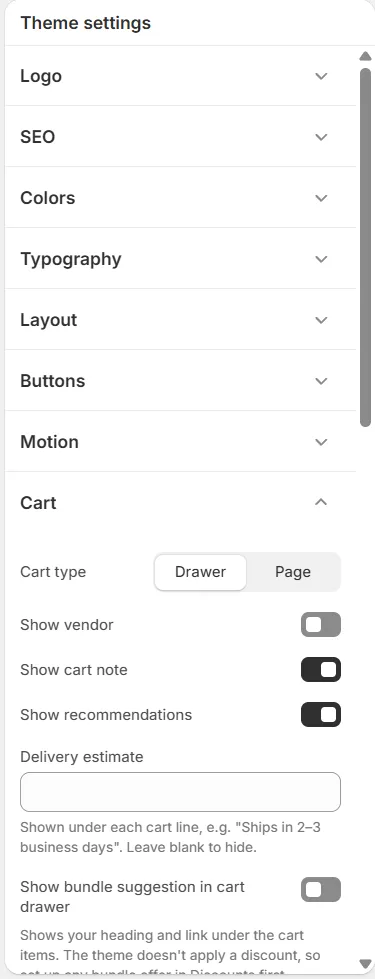
Drawer opens a side panel when a product is added. Page goes to the cart page.
Show vendor
Shows the product vendor on cart lines.
Show cart note
Lets shoppers add a note to their order.
Show recommendations
Shows up to six products in the cart drawer, from the collection with the handle cart-upsell (or all products when that collection doesn’t exist).
Delivery estimate
Text shown under each cart line, such as “Ships in 2–3 business days”. Leave blank to hide.
Show bundle suggestion in cart drawer
Shows your Bundle heading, Bundle text and a link (Bundle link, Bundle link label) under the cart items. The theme doesn’t apply a discount, so set up any bundle offer in Discounts first.
Show gift wrapping option in cart drawer
Adds a gift wrapping checkbox. When checked, the order gets the cart attribute “gift_wrap: yes”.
Free shipping threshold
Minimum order amount for free shipping, in your store currency. Set to 0 to hide the progress bar.
Collection and search
Setting
Description
Search overlay color scheme
Color scheme of the search overlay.
Enable predictive search
Shows products, collections, articles and pages as the shopper types.
Popular search 1–4
Search terms shown as shortcuts in the search overlay and on the search page.
Social media
Add the URLs of your accounts: X (Twitter), Facebook, Instagram, Pinterest, TikTok and YouTube. Icons appear in the footer and, where enabled, in other sections.
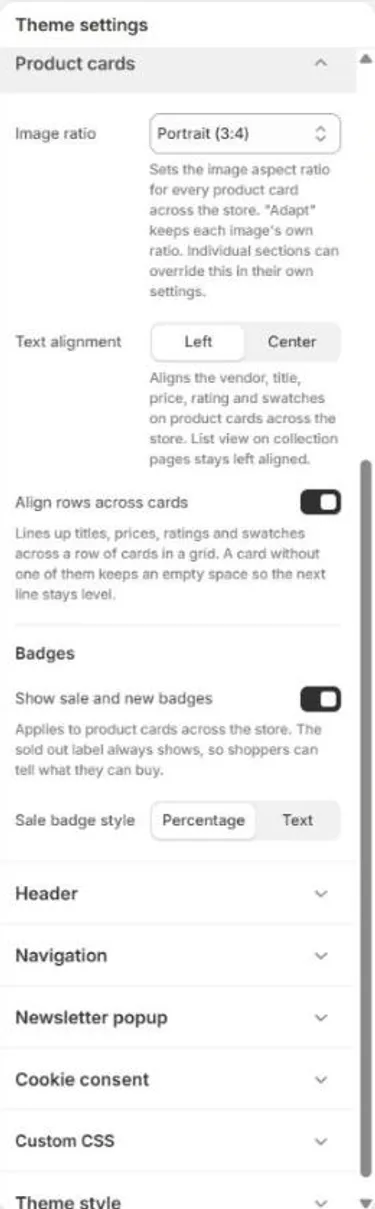
Product cards
Theme settings > Product cards.
Setting
Description
Image ratio
Image shape on every product card: Adapt to image, Portrait (3:4), Square (1:1), Landscape (4:3), Landscape wide (3:2) or Widescreen (16:9). Sections can override it.
Text alignment
Left or Center.
Align rows across cards
Lines up titles, prices, ratings and swatches across a row of cards.
Show sale and new badges
Shows badges on product cards. The sold out label always shows.
Sale badge style
Percentage or Text.
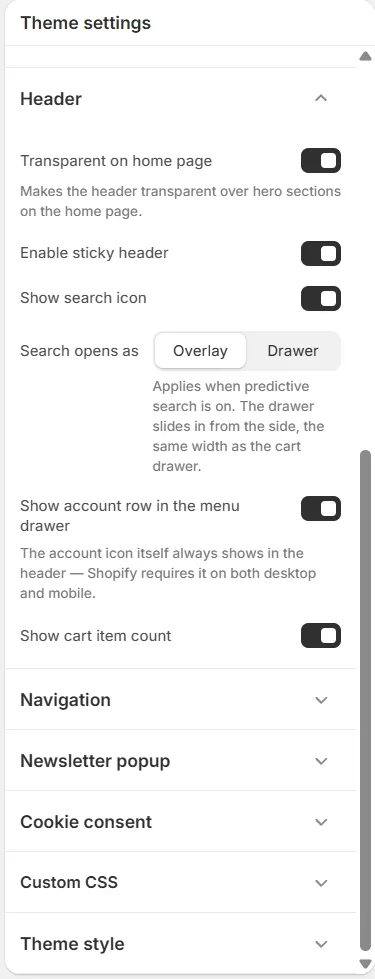
Header
Theme settings > Header.
Setting
Description
Transparent on home page
Makes the header transparent over hero sections on the home page.
Enable sticky header
Keeps the header visible while scrolling.
Show search icon
Shows the search icon in the header.
Search opens as
Overlay or Drawer. Applies when predictive search is on.
Show account row in the menu drawer
Adds an account link to the mobile menu. The account icon in the header always shows.
Show cart item count
Shows the number of items on the cart icon.
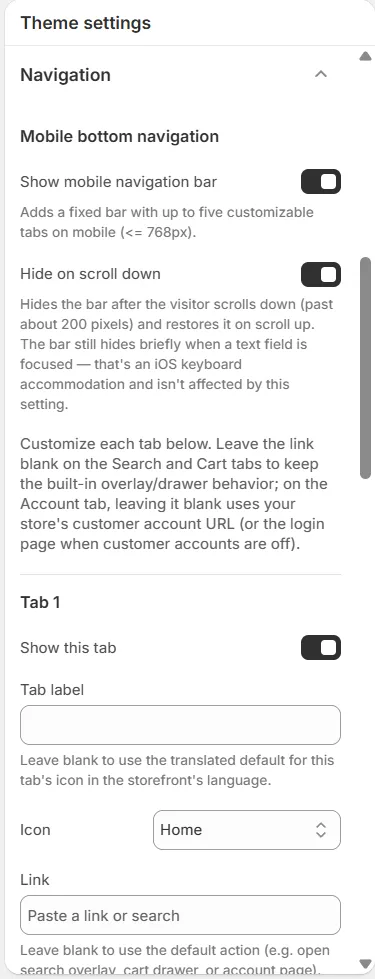
Navigation
The mobile navigation bar is a fixed bar at the bottom of the screen on phones (768px wide or less).
Theme settings > Navigation.
Setting
Description
Show mobile navigation bar
Turns the bar on or off.
Hide on scroll down
Hides the bar while the shopper scrolls down and shows it again on scroll up.
Tab 1–5: Show this tab
Shows or hides the tab.
Tab 1–5: Tab label
Leave blank to use the translated default for the tab’s icon.
Tab 1–5: Icon
Home, Search, Cart, Account, Heart, Menu, Phone, Email, Map pin, Info, Question, Chevron right or Arrow right.
Tab 1–5: Link
Leave blank to use the default action: the Search tab opens search, the Cart tab opens the cart and the Account tab opens the customer account.
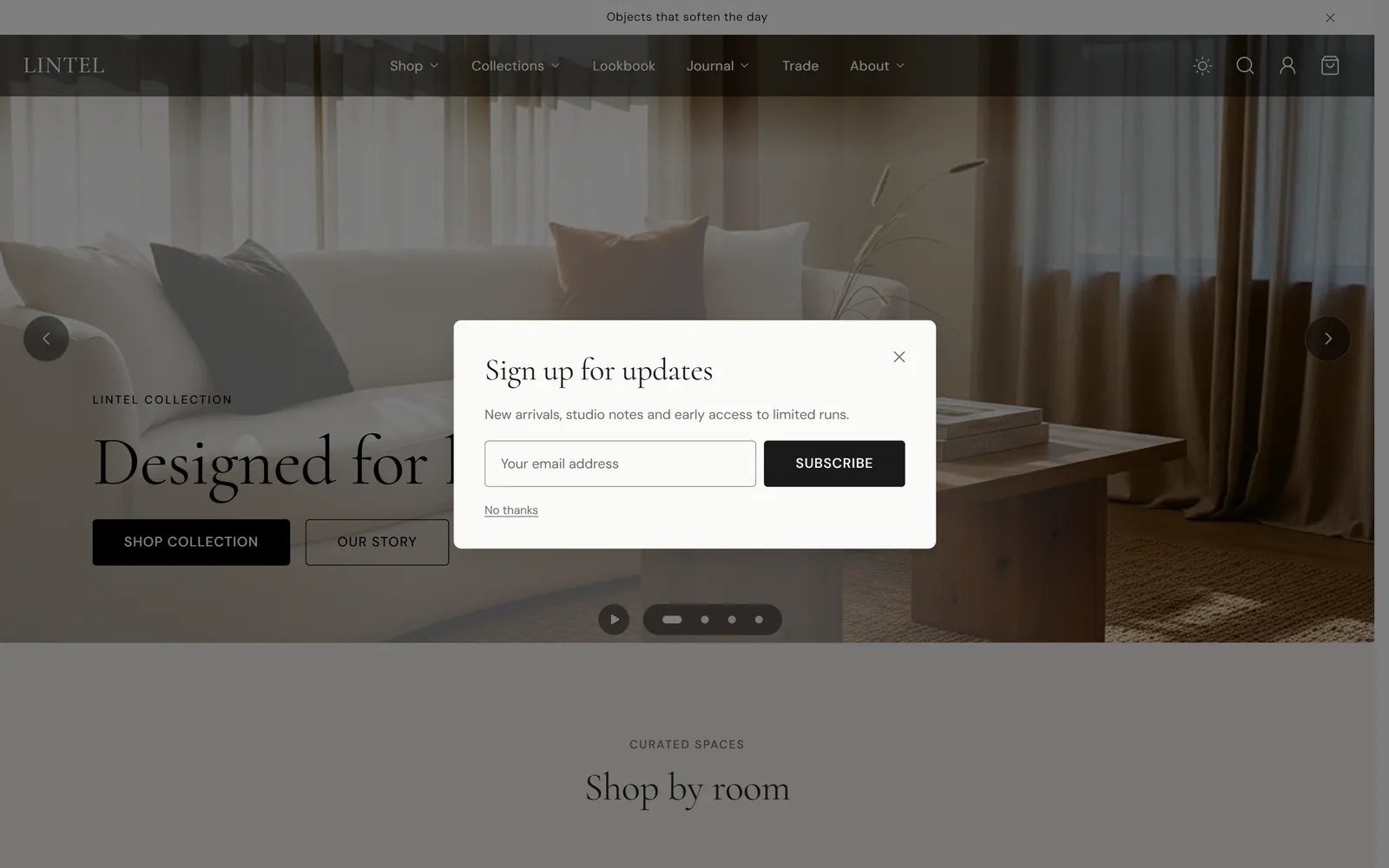
Time delay, Scroll depth or Either delay or scroll.
Delay before showing
Seconds before the popup appears (time delay).
Scroll depth (%)
Page scroll percentage that triggers the popup.
Days before showing again
How long the popup stays hidden after a shopper closes it.
Show “No thanks” link
Adds a link to dismiss the popup.
Sign-ups are added to your Shopify customers as email subscribers, like the Newsletter section.
Cookie consent
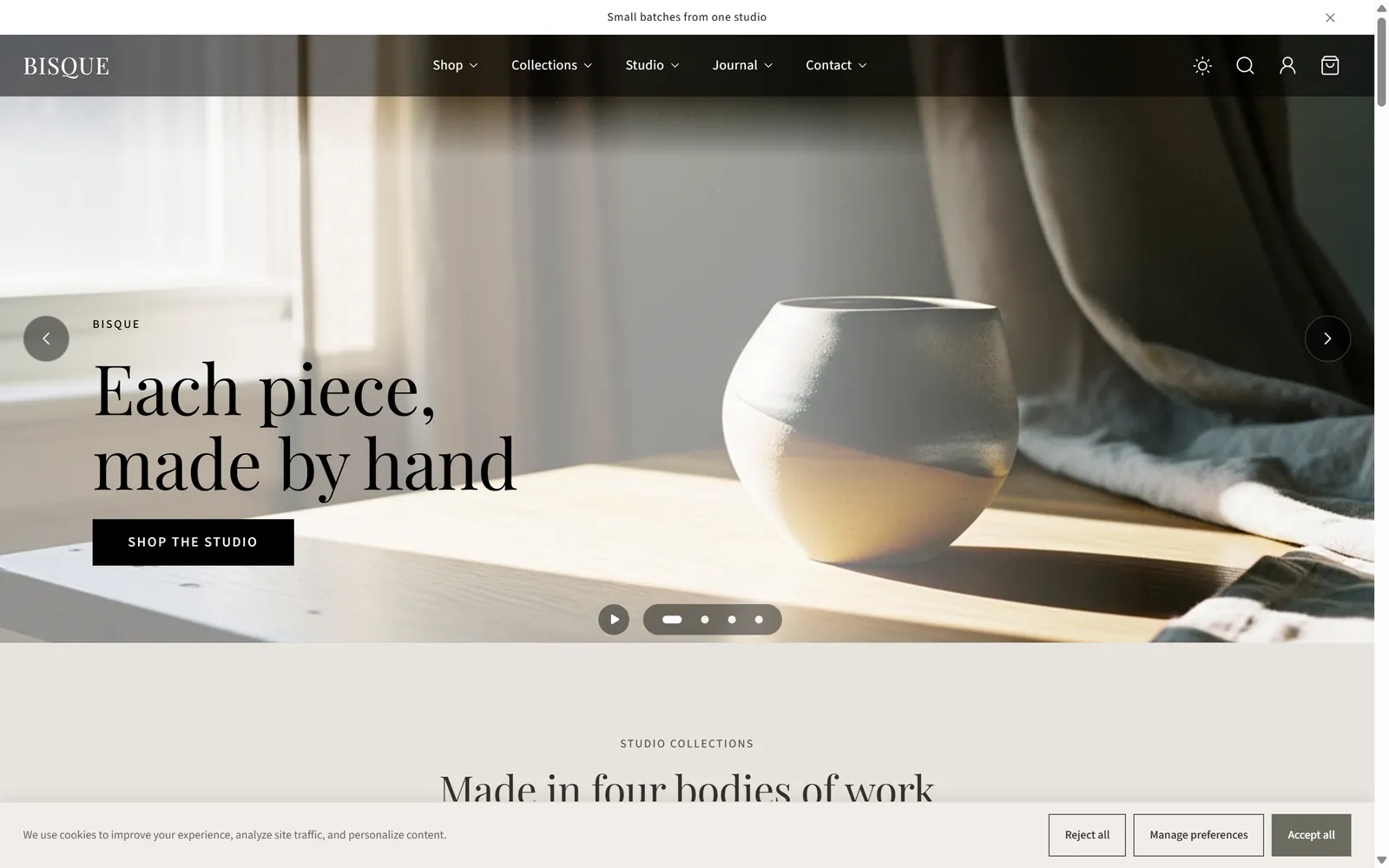
The cookie banner, shown to visitors in regions where Shopify asks for consent.
Setting
Description
Show banner
Shows a consent banner driven by Shopify’s Customer Privacy API.
When to show the banner
Auto (geo-based) shows it only to visitors in regions where consent is required. Always show shows it to every visitor on their first visit.
Banner position
Bottom bar (full width) or Bottom-left card.
Banner message
Leave blank to use the translated default.
Cookie / privacy policy page
Optional page linked from the banner.
Show “Reject all” button
Required in the EU and recommended elsewhere.
The banner helps you collect consent, but you are responsible for your store's privacy compliance. Review Shopify's Settings > Customer privacy as well.